

Backups & Factory Reset
The Relay keeps a history of your network configurations. You can restore any backup or reset to factory defaults from the Configuration History page.
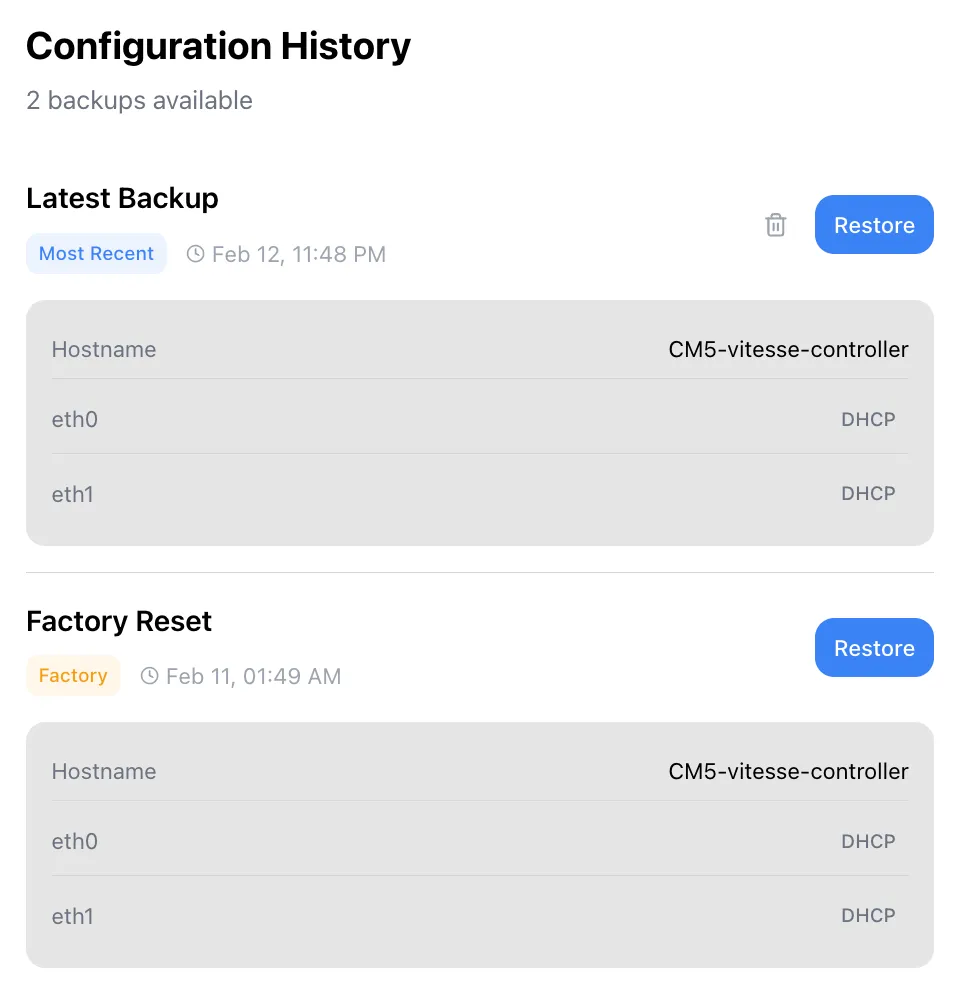
Latest Backup
Section titled “Latest Backup”Every time you apply a new configuration, the Relay saves a backup automatically. The most recent backup is tagged Most Recent and shows:
- Hostname - the name of the Relay
- eth0 - the IT network configuration
- eth1 - the OT network configuration
Restoring a Backup
Section titled “Restoring a Backup”Click Restore next to any backup to revert to that configuration. Useful if:
- A network change broke connectivity
- You want to roll back after testing
- You need to match an earlier working setup
Deleting a Backup
Section titled “Deleting a Backup”Click the trash icon next to a backup to delete it.
Factory Reset
Section titled “Factory Reset”The Factory Reset option restores the Relay to its original out-of-box settings - the same state it was in when you first powered it on.
Click Restore next to Factory Reset to reset. The Relay will reboot and come back up with the Vitesse-Setup-XXXXXX Wi‑Fi hotspot, ready for first-time setup again.
Next: Claim your Relay in the app.