

AI Assistant
The AI assistant understands your relays, controllers, models, and symbols. It can search, inspect, create, and control - using text or voice.
Opening the AI
Section titled “Opening the AI”- Click the AI button in the header
- Or use the prompt bar on the home page
What You Can Ask
Section titled “What You Can Ask”Search & Inspect
Section titled “Search & Inspect”- “Find all temperature symbols”
- “What’s the current value of Motor.Speed?”
- “Which controllers are connected?”
- “Show me the status of Relay A”
Control
Section titled “Control”- “Set Motor.Enable to true”
- “Start the cycle counter model”
- “Send the reset command to the alarm model”
- “Connect to Relay A”
Create & Edit
Section titled “Create & Edit”- “Create a model that counts production cycles”
- “Add an error state to the motor model”
- “Rename this controller to Line 3 PLC”
Text Conversations
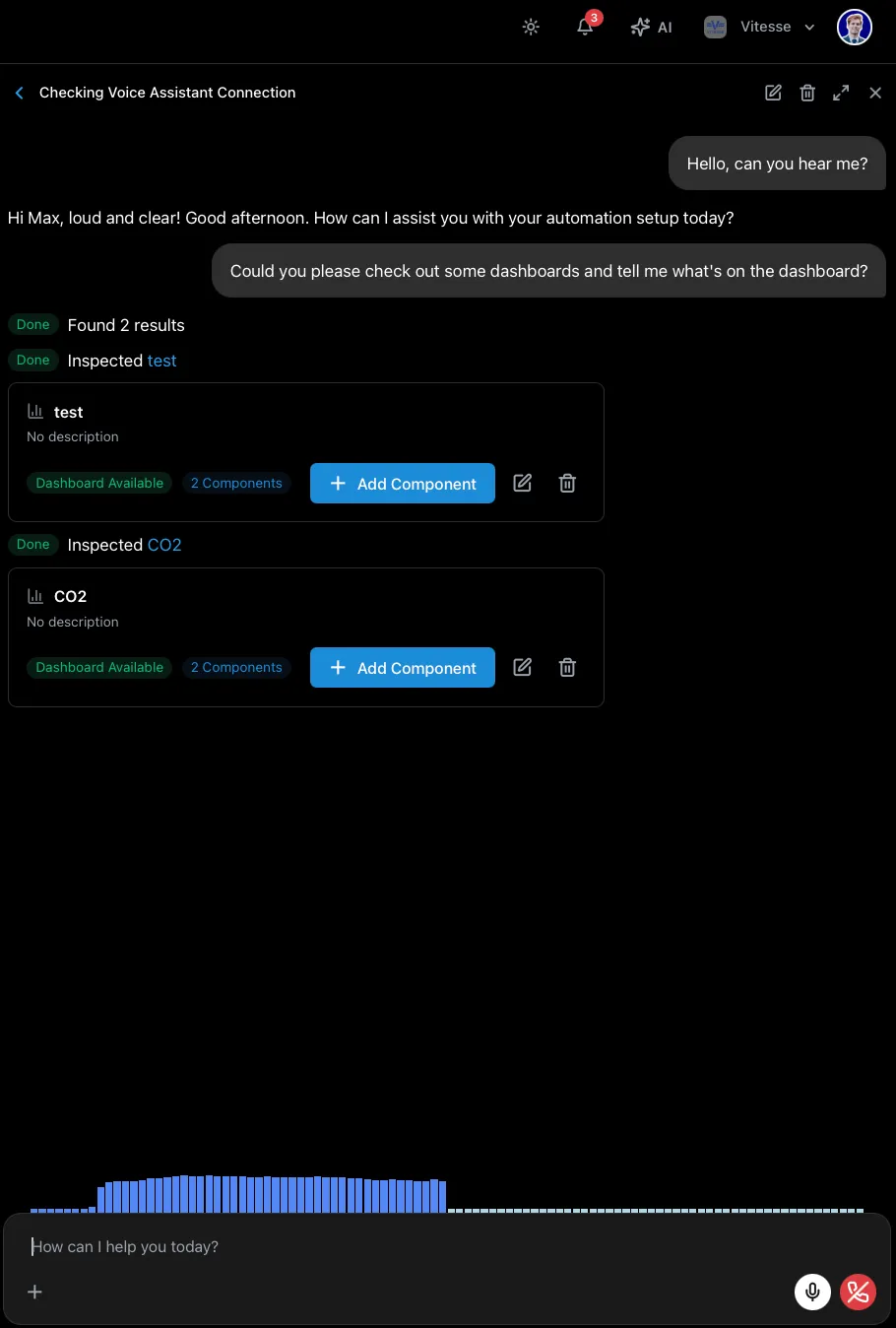
Section titled “Text Conversations”Type your message and press Enter. When the AI interacts with the system, you’ll see tool call cards showing exactly what it’s doing.
You can attach files (images, PDFs, audio, video) - click the + button or drag and drop.
Voice Mode
Section titled “Voice Mode”- Click the microphone icon in the prompt bar or AI panel
- Speak naturally - the AI responds with audio
- A floating pill appears at the bottom when the AI panel is closed
- Click End Call to stop
The voice mode screenshot above shows the audio visualizer at the bottom of the AI panel with the real-time transcript of the conversation.
Safety
Section titled “Safety”- Always confirms before writing values to PLCs
- Shows every action via tool call cards - nothing hidden
- Respects permissions - only accesses relays in your organization
Memories
Section titled “Memories”The AI can remember facts about your setup across conversations:
- Tell it: “Remember that the temperature sensor on Line 2 reads in Fahrenheit”
- Create memories manually from the Memories tab in the AI panel
- Edit or delete memories anytime